Written with artificial intelligence by Tuko's editorial system, from the sources linked below. If you spot a mistake, write to joan@tukoteam.com.
How to rank your Shopify store on Google by starting with the pages that already sell

To rank a Shopify store on Google, start with the 10 to 20 product and collection pages that sell the most. Cross that list with the impressions, clicks and average position in Search Console, and work first on the pages Google already shows but in weak positions. On those pages you adjust the title, meta description, your own product description, image alt text and internal links from Shopify's SEO settings. The blog, backlinks and page speed come later.
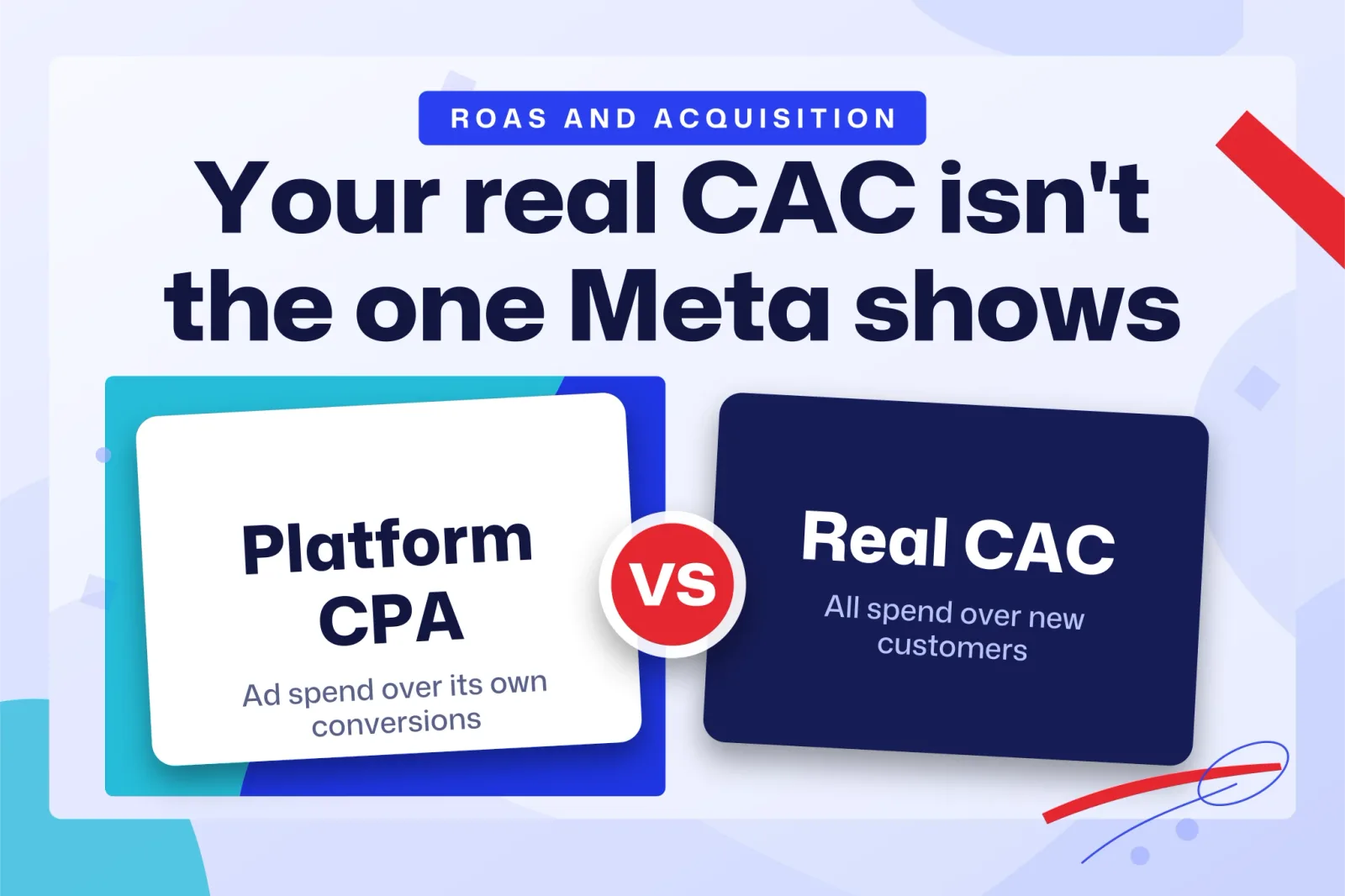
The order has to do with money. A product page that already converts with paid or direct traffic will also convert the visits that arrive from Google, and every organic order is one you don't pay Meta for. If you already know how much you can spend to acquire a customer, or you struggle to clear your break-even ROAS, you know what that saving is worth. A checklist with dozens of items applied to the whole store spreads effort equally between the page that sells a hundred units a month and the one that sells none. That is the part to avoid.
The Shopify and Google help pages cited here were consulted on 19 and 20 November 2026.
How long does Google take to show SEO changes on a Shopify store?
Between a few days and a few weeks, and nobody can promise an exact timeline. Google's Search Console help says the total time can be “anywhere from a day or two to a few weeks”, depending on many factors. Shopify's help page on keywords warns that you might need to wait “a couple of weeks” for your edits to show in search results, and its page on the sitemap reminds you that crawling and indexing takes time and that Google gives no fixed timeline for it.
Distrust anyone who gives you a fixed timeline. And separate two problems that often get mixed up. On that same Search Console help page, Google says many people assume they are not on Google when their page simply appears low in the results. A page that isn't indexed and a page indexed at position 30 need different fixes, and the decision table below treats them separately.
What do you need to set up before touching your store's SEO?
Two things: have your store verified in Google Search Console, and know where the SEO of each page is edited. Without Search Console you work blind, because it is where Google shows you which searches your pages appear for and at what position.
The sitemap is already done for you. According to Shopify's sitemap help, all Shopify stores automatically generate a sitemap.xml file that contains links to all your products, the primary product image, pages, collections and blog posts. The logical step is to submit it once from Search Console so Google has it located. You don't need to maintain it by hand.
Editing happens page by page. Shopify says on that same help page that for individual products, collections, blog posts and pages you use the “Website SEO preview” section at the bottom of each page. The name can change between versions of the admin, so look for it at the bottom of each product's edit screen.
Which pages of your store should you optimize first?
The ones that already sell and that Google already shows, even in weak positions. This is our own criterion, not a Google rule, and it rests on simple reasoning: moving up a page that Google already associates with a search usually costs less than getting a page to appear that doesn't show at all, and if that product page already converts, the extra visits you win look a lot like orders.
The method, step by step
- Pull your top 10 to 20 products by sales over the last 90 days from Shopify. Use the sales-by-product report in the analytics section of the admin; its name and location can vary by plan, so check your account. Add the collections that group those products.
- Open Search Console and look at the data by page in the performance report. For each URL on your list, note impressions, clicks and average position for the same period. If the screens have been renamed, those three numbers per URL are what you need.
- Work out the click-through rate of each page: clicks divided by impressions, times 100.
- Classify each page with the decision table.
- Work in batches of three to five pages and write down the date of each change. If you touch forty pages on the same day, you won't know afterwards what moved what.
Decision table
| Page situation | What it usually means | What to do |
|---|---|---|
| High sales, many impressions, average position between 8 and 20 | Google ties it to real searches but leaves it at the bottom of page one or on page two | Priority 1: title, meta description, your own description and internal links |
| High sales, good position, few clicks for the impressions it gets | It is seen, but the result doesn't invite a click | Rewrite the title and meta description |
| High sales, no impressions or almost none | It may not be indexed, or its name doesn't match what people type | URL Inspection in Search Console, and check whether the title uses the buyer's words |
| High sales, average position worse than 20 | Google sees it as barely relevant for those searches | Your own description and links from collections; this is the slowest work |
| Low sales, many impressions or clicks | Traffic arrives, but the page doesn't convince | Fix conversion before SEO |
| Low sales, few impressions | Little to gain in the short term | Leave it for later |
The cut-offs at positions 8 and 20 are our own criterion, not a Google threshold. Average position blends many different searches, so it works for ranking your pages against each other and little else. The question of whether to touch product pages or collections first works the same way: the table decides, not the page type.
Example: how the work gets ordered in a store with five pages
A hypothetical store pulls its last 90 days of data. Sales come from all channels, because what matters is which page converts; impressions, clicks and position come from Search Console. Collection D groups products A and B, so its sales are the sum of both: 120 + 90 = 210.
| Page | Sales | Impressions | Clicks | Click-through rate | Average position |
|---|---|---|---|---|---|
| Product A | 120 | 4,000 | 40 | 1% | 12 |
| Product B | 90 | 300 | 30 | 10% | 3 |
| Product C | 80 | 0 | 0 | no data | no data |
| Collection D (A + B) | 210 | 5,000 | 25 | 0.5% | 15 |
| Product E | 5 | 6,000 | 120 | 2% | 7 |
The work order comes out like this:
- Product C, on day one. It sells 80 units and Google never shows it. Run it through URL Inspection: if it isn't indexed, request indexing. If it is, the most likely cause is a title built on an internal name nobody searches, such as a model code, instead of what the product is. It is ten minutes of work.
- Product A. It sells 120 and Google shows it 4,000 times at position 12, but only 40 people click (40 ÷ 4,000 = 1%). This is the priority 1 case: title, meta description and your own description.
- Collection D. It has 5,000 impressions at position 15 and 25 clicks (25 ÷ 5,000 = 0.5%). It groups the two best sellers, so every visit it wins can end up on A or B. It goes right after.
- Product B, leave it alone. Position 3 and a 10% click-through rate (30 ÷ 300). It performs well for what people search; rewriting it risks something that works.
- Product E, outside the SEO plan. It gets 120 clicks and sells 5. The traffic already arrives, so the problem sits on the page itself.
Product E gets the most clicks from Google and ends up last. A plan ordered by traffic would have put it first and spent weeks bringing more visits to a page that doesn't sell. For that kind of page, the guide on optimizing your store's conversion rate and margin will help more.
What should you change on each product page?
The title, the meta description, the description and the images, in that order of impact by our judgment. Everything is edited on the product screen, with the SEO part at the bottom.
Product title and SEO title
Shopify uses the title you enter for the product to generate the H1 of the page, according to its help page on keywords. That name should say what the product is in the buyer's words, not the supplier's code. In the SEO section you can write the title Google will see separately: Shopify lets you enter up to 70 characters and suggests keeping it to 60 to avoid shortened titles in search results, per the same Shopify page. Put the product type and its distinguishing feature first, and the brand at the end if it fits.
Meta description
It can be set for webpages, product pages, collection pages and blog posts, as Shopify's help explains. Write what the product is, who it is for and why to buy it from your store: delivery time, returns terms, whatever you really offer.
Google may not use it. Shopify acknowledges on that help page that search engines such as Google can rewrite page titles and meta descriptions based on the page content and other signals. That is why you sometimes see a different title in Google than the one you set. What you control is making the page text back up what the title promises; the logical bet is that the closer they match, the less reason Google has to change it.
Your own description
Shopify advises against copying the text a manufacturer gives you, because that description might already be used by other websites (Shopify's help on keywords). If you resell brands, that is the first thing I would change on priority 1 pages. Write what the manufacturer doesn't say: how it looks in use, what it pairs with, what customers ask before buying and how to care for it. Don't chase a word count; keep writing until you have answered the doubts that hold back the purchase.
Images
You can set alt text on product images, on a collection's featured image and on a blog post's featured image, according to Shopify's help. Describe what is visible, with the product name. File names have a limitation: Shopify's guide to optimizing your site says you can't change file names in Shopify, so the only route is uploading the image again under another name. Rename before you upload (“blue-steel-water-bottle.jpg” instead of “IMG_4482.jpg”). For images already uploaded, redoing them pays off on priority 1 pages and nowhere else.
How do you optimize collection pages on a Shopify store?
With the same fields as a product page (SEO title, meta description and alt text of the featured image) and with one job product pages don't have: distributing links. Our reading is that collections tend to show up for broader searches than product pages, like “women's trail running shoes” as opposed to one specific model, so their title and text should use those wider words.
In its guide to optimizing your site, Shopify recommends that pages not be more than 3 clicks away from the home page wherever possible, and that internal links use descriptive text. In practice:
- Link your priority 1 collections from the main menu or the home page.
- In the collection text, link to the best-selling products by their real name, never with “see more”.
- From each product page, link back to its collection.
What technical SEO can you leave alone on Shopify?
The sitemap, the theme's structured data and robots.txt, unless you have a specific reason. These three tasks appear on many checklists and Shopify already handles them out of the box.
- Sitemap. It is generated automatically with products, pages, collections and blog posts, per Shopify's help.
- Structured data. Shopify explains on that same page that in its themes, product pages include microdata about prices, availability and reviews, which can appear as rich snippets in search results. If you use a third-party or heavily modified theme, the logical move is to check that it keeps them before installing an app that duplicates them.
- robots.txt. All Shopify stores have a default robots.txt file that Shopify says is optimal for SEO, according to its help on editing robots.txt. Changing it without knowing what you are doing can block pages you do want on Google.
Before paying for an SEO app that promises to fix these three things, check what it really does and which permissions it asks for. The guide on choosing Shopify apps without overpaying has the criteria.
How do you review results without promising timelines?
Change one batch of pages, request reindexing for each, and compare every page against itself. Shopify says that to prompt Google to recrawl a page after you change it, you use the URL Inspection tool in Search Console and request indexing for that page (Shopify's help). Requesting it flags the change; when it shows up still has no date.
Our review rhythm is at 4, 8 and 12 weeks after the change. It is a working cadence, not a Google timeline. At each review, compare the page's impressions, clicks and average position with a period of the same length before the change. With little data, don't draw conclusions: going from 3 to 5 clicks, for example, is noise. If a page hasn't moved after 12 weeks, move on to the next batch instead of rewriting it every week, because that way you will never know what worked.
Do you need a blog, backlinks or more speed to get started?
To get started, no. All three can help later, but none of them touches the pages that already bring you money.
A blog mostly attracts informational searches, far from purchase, and takes a while to build traffic. It makes sense once your main product and collection pages are worked and you want to reach people who don't yet know what to buy. Links from other sites are hard to get and you control little about when they arrive; someone is more likely to link a product page with its own description than one copied from the manufacturer. On speed, if your theme loads many apps, review which ones you really use and remove the extras. It is probably not the main reason a product that sells sits at position 12.
This week you can do the essentials: pull your top 20 products, cross them with Search Console, classify them with the table and work on the first three pages. Once those pages start getting visits from Google, the next step is to make the most of them. That is where Tuko fits, and we say so as an interested party: it is an app that adds a group-buy button to the product page. The customer pays with the discount already applied and shares their link, for example over WhatsApp, and has 24 hours for another person to join; the group price only holds if someone does. One customer comes in. They bring another. Both buy. Tuko doesn't affect your rankings; it belongs on the product pages that already get visits. It installs in about two minutes from the Shopify App Store without touching your theme, although headless stores aren't supported yet. If the idea of customers bringing other customers interests you, continue with referral marketing for online stores.