Written with artificial intelligence by Tuko's editorial system, from the sources linked below. If you spot a mistake, write to joan@tukoteam.com.
How to choose the best Shopify apps without overpaying or over-sharing data
The best Shopify apps for your store are the ones that solve a problem you already have, pay for themselves out of the margin they generate, and ask only for the data access they need. No list of names can know that for you. This guide gives you four criteria (need, quality signals, real cost and permissions) and shows you how to check them in the Shopify admin, including the IP allowlist requirement Shopify announced in November 2026, which already shows up in Settings > Apps.
Many of the lists that rank for “best Shopify apps” are published by companies that sell apps or services. That is legitimate, but worth keeping in mind as you read them. This guide swaps the ranking for a decision method and a calculation of what your whole app stack costs, which matters because every subscription comes out of the same margin that pays for your advertising. If you don't yet know that margin, start with how much you can spend to acquire a customer without losing money.
Which apps does your store actually need?
You need an app when there is a task you do by hand every week or a gap that costs you sales, and not before. Installing apps just in case adds subscriptions, permissions and theme code without improving anything. The table lists the categories that come up most in app roundups, the signal that tells you that you need one, and what to check before choosing.
| Category | Signal that you need it | What to check before installing |
|---|---|---|
| Email and automations | You don't recover abandoned carts, or you do it by hand | Whether it charges per contact or per send, and how much the price rises as your list grows |
| Reviews | Your product pages show no customer opinions | What order access it asks for and what code it adds to the theme |
| Shipping and labels | You copy addresses by hand into the carrier's website | Whether it charges per label or per shipment, because that bill grows with your orders |
| Loyalty and referrals | You have repeat customers but they don't bring anyone | What each new customer costs compared with your margin per order |
| SEO | Your titles, descriptions or structured data are incomplete | What it changes in the theme and what stays behind after uninstalling |
For a store that has just launched, the logical order is to cover what slows down daily operations first (shipping, order emails, abandoned cart emails) and leave optimization, such as loyalty, for later. A points program with few repeat customers has little to work on. If what you want is for customers to bring others, the cost logic is laid out in how referral marketing works and how much you can pay per customer.
What do the Built for Shopify badge, reviews and the Ad label tell you?
Each signal in the Shopify App Store measures one specific thing, and none of them answers on its own whether an app suits you. What each one measures is described in Shopify's help page on finding and choosing apps, which we consulted in November 2026.
| Signal | What it measures | What it doesn't tell you |
|---|---|---|
| Built for Shopify badge | Among its requirements, that the app cannot decrease your storefront's speed by more than 10 performance points, per Shopify's help | Whether you need it, what it will cost or what access it asks for |
| Overall rating | A weighted average that prioritizes the most timely and relevant reviews | Whether the reviewers run a store like yours |
| Ad label | That the developer paid Shopify to display the app to you | Whether it is the best fit for your store |
Of the three, the badge is the most useful for protecting speed, because it sets a measurable limit. Reviews help more if you read the recent and the negative ones: that is where you see whether the developer replies and which problem keeps coming up. The Ad label tells you that the position in the results was paid for.
Is a free app really free?
It depends on the plan you are on, so check before installing. According to Shopify's help on choosing apps, most paid apps offer a free basic plan or a free trial period so you can try them before buying. The sensible move is to look at the app listing and see whether the free tier is a basic plan or a trial with an end date.
Cost shows up in four ways. The trial ends and the subscription starts. Your store grows and outgrows the basic plan. The app charges by usage, so the bill rises with your orders even if you change nothing. Or the developer bills outside Shopify, on their own website, and that charge stays alive even after you uninstall the app from the admin, as Shopify's page on uninstalling apps warns.
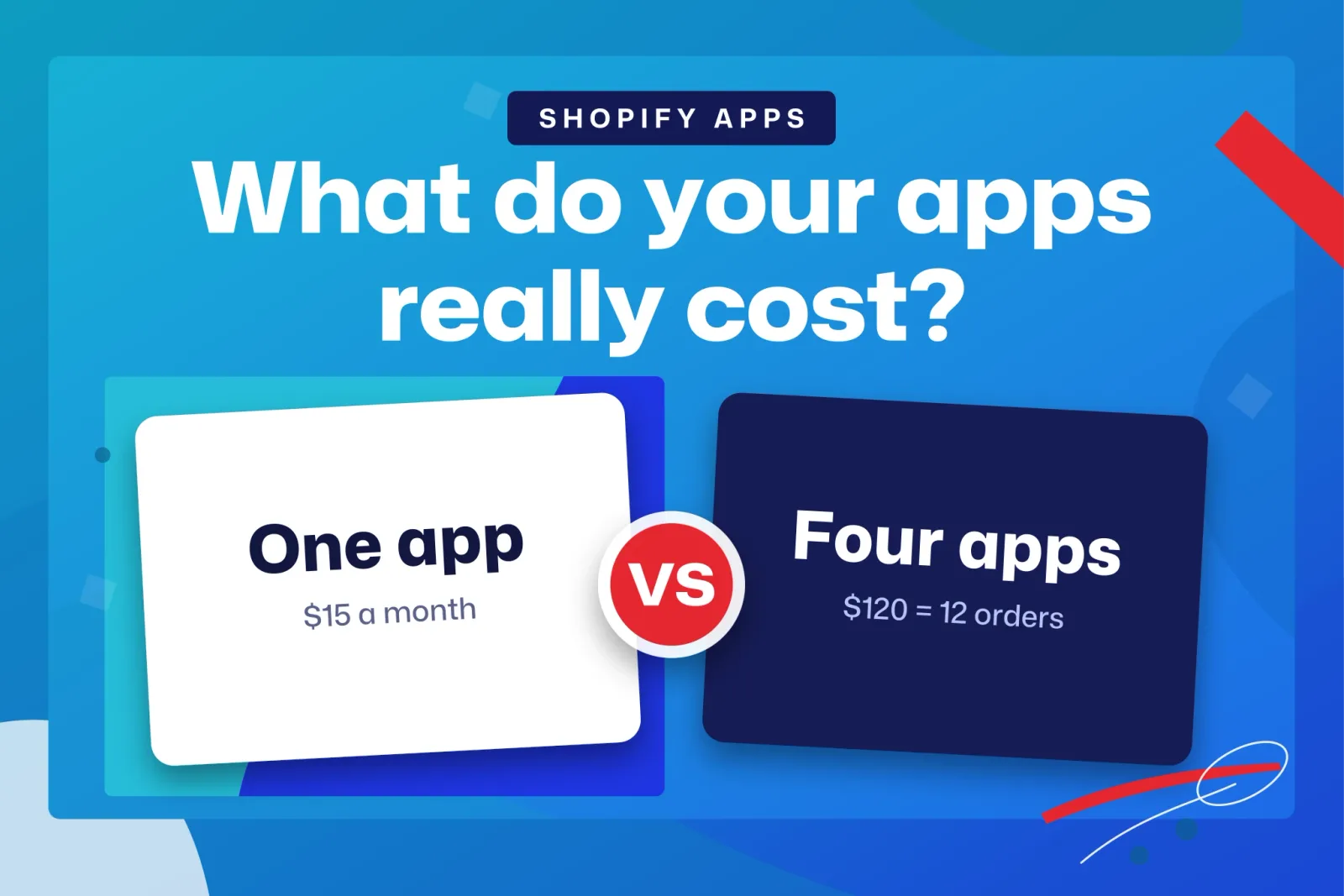
One small fee looks irrelevant. Four together already equal several orders of margin per month, which is why it pays to look at the whole stack instead of each app on its own.
Example: what four apps cost, counted in orders
The clearest way to see what your apps cost is to divide what you pay each month by the margin each order leaves you. The result is the number of orders you work only to pay for your tools.
All figures in this section are invented. Picture a store with 500 orders a month and a margin of $10 per order after product, shipping and payment fees. It uses four apps: an email app with a flat fee of $30, a reviews app at $15, a shipping app that charges $0.10 per label, and an SMS service it pays for separately, outside Shopify, at $25 a month.
| Item | How it charges | Cost per month | Orders needed to pay for it ($10 margin) |
|---|---|---|---|
| Email app | Flat fee | $30 | 3 |
| Reviews app | Flat fee | $15 | 1.5 |
| Shipping app | $0.10 × 500 labels | $50 | 5 |
| SMS (external billing) | Flat fee outside Shopify | $25 | 2.5 |
| Total | $120 | 12 |
The store spends 12 of its 500 monthly orders paying for apps: 2.4% of its margin, or $0.24 per order. The reviews app has to bring in at least 1.5 extra orders a month to cover itself. The shipping app is the most expensive even though nobody sees it that way, because its bill grows with every order. And the SMS charge doesn't appear on the Shopify invoice, so it is the first one forgotten when you do the math.
Those $0.24 per order come out of the same margin you use to decide how much to spend on ads. If you work with a break-even ROAS, subtract them before running the numbers: with $10 of margin per order, what is left for advertising is $9.76.
How do you check what customer data an app can access?
Before installing, look at the Install app screen. After installing, look in Settings > Apps. Follow these steps.
- Read the Install app screen before accepting. According to Shopify's help on installing apps, it displays the data and areas of your store the app needs access to. If a simple trust-badge app asks for customer and order data, ask why before you install it.
- Check how many orders it can read. Permission to access recent orders covers only the last 60 days; permission to access all orders covers any past and future order, per Shopify's help on choosing apps. An app that requests reviews after purchase can probably manage with recent orders.
- Review the installed app in Settings > Apps. If it has permissions it hasn't used in the last 30 days, they appear in a subsection called Unused access, as Shopify's page on managing apps explains.
- Look at its security setup. In Settings > Apps you can already see whether an app uses expiring tokens and an IP allowlist, according to the Shopify developer blog of November 5, 2026. If it shows Enforced IP restrictions, the app's Admin API requests to your store only work from servers the developer approved, per Shopify's help.
A permission under Unused access proves nothing bad. It may belong to a feature you haven't turned on. The reasonable step is to write to the developer, ask what it is for and, if none of your features use it, ask them to remove it. If they take weeks to answer a question about your data, factor that in for the day the app breaks in the middle of a campaign.
Is an app with every security check actually secure?
Not necessarily, and an app without them isn't insecure for that reason alone. Shopify says so on its page on managing apps: the security checks describe how the app is set up and they are not an overall security rating, so passing them doesn't make an app safe and missing them doesn't make it unsafe.
Our reading is that the IP allowlist protects against one specific risk. Shopify explains in its developer changelog that leaked tokens can be used from any network location and that allowlists reduce the impact of a credential leak by limiting the networks from which the app can invoke the Admin API. What the app does with your data once it is on its own servers falls outside that check.
The decision therefore rests on several signals at once: the app covers a real need, asks for proportionate access, doesn't pile up unused permissions, has recent reviews with developer replies and, if it is public, meets the IP requirement. An app that fails one signal deserves a question to the developer. If it fails several, look for an alternative.
What changes with the mandatory IP allowlist of November 2026?
Public apps without an IP allowlist will be delisted from the Shopify App Store and blocked from new installs, according to Shopify's developer changelog of November 5, 2026. Existing installs keep working until April 1, 2027, as the Shopify developer blog states. The dates below were checked on November 15, 2026 and Shopify could move them, so confirm them at those links.
| Date | What happens | Who it affects |
|---|---|---|
| November 12, 2026 | Deadline to configure an allowlist (Shopify changelog) | Public apps that use bulk operations |
| November 20, 2026, 11:59 PM ET | Deadline for all other public apps; apps without an allowlist are delisted from the App Store, blocked from new installs and flagged in Settings > Apps (Shopify blog) | All other public apps |
| November 20, 2026, 11:59 PM ET | Allowlist required for new installs (Shopify changelog) | Custom apps installed outside the developer's organization |
| January 1, 2027, 11:59 PM ET | Allowlist required for existing installs too (Shopify changelog) | Custom apps installed outside the developer's organization |
| April 1, 2027 | Date until which existing installs keep working (Shopify blog) | Public apps you already have installed |
Apps created by merchants, either in the Dev Dashboard or in the admin, fall outside the requirement according to the same Shopify changelog.
What to do if one of your apps is flagged
Don't uninstall it on reflex. Existing installs keep working until April 1, 2027, per the Shopify developer blog, so you have time to ask. Write to the developer, ask whether they will configure the allowlist and by when, and keep the answer. Our reading is that after that date an app without an allowlist may stop working in your store. If the developer doesn't reply or gives no date, start testing alternatives calmly: swapping your shipping or email app in peak season is much worse than doing it in a quiet month.
Note for agencies
If you install custom apps on client stores, outside your organization, the change reaches you too. According to the Shopify changelog of November 11, 2026, those apps need an IP allowlist for new installs from November 20, 2026 at 11:59 PM ET and for existing installs from January 1, 2027 at the same time. Take inventory of each client's custom apps before that second date.
How do you uninstall an app without leftovers or charges?
Uninstalling a paid app from the admin cancels future recurring charges, but it leaves loose ends you have to close yourself: a possible charge for the current billing cycle, external charges, and code some apps leave in your theme. All three are covered in Shopify's page on uninstalling apps.
- Duplicate your published theme before touching anything, so you have a clean copy to go back to.
- Ask the developer which theme files or blocks their app modifies. Some apps add code that isn't automatically removed when you uninstall them.
- Uninstall from the admin, and expect that you might still be billed for the current billing cycle.
- Cancel any external charge separately, on the developer's website or wherever you signed up.
- Ask for written confirmation that your data was deleted. Shopify's help says that to confirm the requested data was deleted, you need to check with the app's developer directly.
- Check the product page, cart and checkout on mobile after cleaning up the code.
A checklist for every new app and every quarter
Before installing an app
- Which manual task or lost sale does it solve?
- How many orders a month do I need to pay for it, adding the fee, usage charges and external billing?
- Does the access it asks for on the Install app screen match what it does? Would recent orders be enough?
- Does it have recent reviews, and does the developer answer the negative ones?
- Does it carry the Built for Shopify badge? If not, measure your store's speed before and after installing it.
- What does it leave in the theme when you uninstall it?
Every quarter
- Open Settings > Apps and review Unused access on each app.
- Check the security setup and write to the developers of flagged apps.
- Add up what you paid each app, external billing included, and convert it into orders using your margin.
- Uninstall what you haven't used and close its external billing.
What about an app that gets customers to bring others?
This is where Tuko comes in. It is the app behind this blog, so we are an interested party. Tuko adds a group-buy button to the product page: the customer pays with the discount already applied, shares their link and has 24 hours for one more person to join, so nobody gets the group price without bringing another customer. It installs in about two minutes, with no theme changes, no changes to your Shopify payment settings and no Shopify Plus. Apply the same criteria you would to any other app: read what access it asks for on the install screen, work out its cost in orders from what its App Store listing says, and decide whether it fits your margin. If you want to understand the mechanism first, read what group buying is and how it differs from Groupon.
Frequently asked questions
How many apps can I have installed?
The Shopify help pages we consulted for this guide don't give a recommended maximum. The practical limit comes from the cost of the whole stack, measured in orders per month, and from how much the apps weigh on your store's speed. Several small apps can weigh more than one big one on both counts.
Are apps that miss the IP requirement uninstalled automatically?
What Shopify has published talks about delisting them from the App Store and blocking new installs, not about removing them from your store. Existing installs keep working until April 1, 2027, according to the Shopify developer blog.
Does uninstalling an app stop the charges?
It cancels future recurring charges on paid apps, but you might still be billed for the current cycle, and it doesn't cancel external charges, according to Shopify's help on uninstalling apps. You cancel external charges yourself with the developer.
Open Settings > Apps today, go into each app and note which permissions it has left unused, whether it is flagged for the IP allowlist, and what it costs you per month in orders. With that sheet you can decide what stays, and the usual outcome is that something goes. If the review leaves you missing a way for customers to bring others, you can install Tuko from the Shopify App Store and try it first on a single product.